We Use CookiesWe use cookies to enhance the security, performance, functionality and for analytical and promotional activities. By continuing to browse this site you are agreeing to our privacy policy

10 Best Graphic Tablets For Drawing 2026 in the United States
How do we rank products for you?

Our technology thoroughly searches through the online shopping world, reviewing hundreds of sites. We then process and analyze this information, updating in real-time to bring you the latest top-rated products. This way, you always get the best and most current options available.

headphones-stars

Our Top Picks

#1

Winner

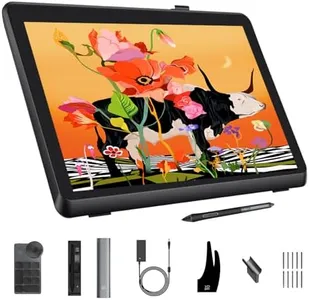
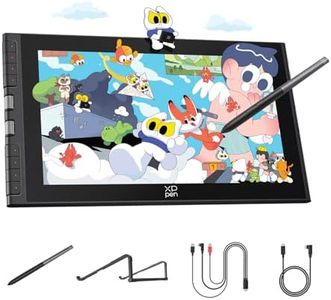
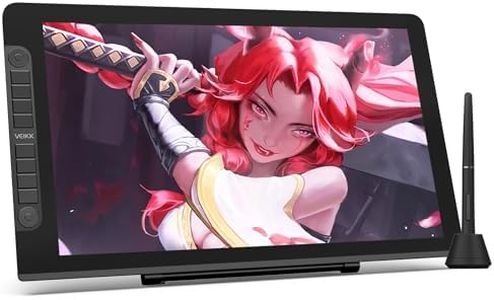
XPPen Artist Pro 22 Gen2 2.5K QHD Drawing Tablet with Screen, 16384 Pen Pressure Stylus Graphic Tablet with Wireless Keydial, 99% Adobe RGB, △E<1, ADS-IPS Pen Display with Full Laminated Screen 21.5"

Rating
10.0
Chosen by1,112
Active Drawing Area

Most important from
797 reviews

Active Drawing Area
The large 21.5-inch screen is perfect for a stay-at-home setup, offering ample workspace for detailed projects.

The XPPen Artist Pro 22 Gen2 2.5K QHD Drawing Tablet is a feature-rich choice for professional artists and graphic designers. Its standout feature is the 21.5-inch full-laminated screen with 2.5K QHD resolution, offering crystal clear visuals and a large, comfortable workspace. The tablet boasts impressive color accuracy with 99% Adobe RGB coverage and a Delta E<1, making it ideal for color-critical tasks like photo editing and digital painting.

The 16,384 levels of pen pressure sensitivity and tilt functionality provide a highly responsive and natural drawing experience, further enhanced by the felt nibs that mimic the feel of real paper. Additionally, the included ACK05 Wireless Keydial with 40 customizable keys and a physical dial improves workflow efficiency by allowing quick access to shortcuts and essential functions. The connectivity options are versatile, supporting USB-C, HDMI, and Bluetooth, ensuring compatibility with a wide range of devices and operating systems including Windows, macOS, Android, ChromeOS, and Linux.

The ergonomic ACS02 stand allows for easy angle adjustments, contributing to user comfort during long drawing sessions. However, the tablet is relatively heavy at 12.2 pounds, which may be a consideration if portability is important. The price might also be on the higher side, given its advanced features and professional-grade performance. This tablet is best suited for serious artists and professionals who prioritize color accuracy, large workspace, and advanced pen capabilities. Beginners or casual users might find it a bit complex and expensive for their needs.

Rating
10.0
Chosen by1,112
Active Drawing Area

Most important from
797 reviews

Active Drawing Area
The large 21.5-inch screen is perfect for a stay-at-home setup, offering ample workspace for detailed projects.
#2

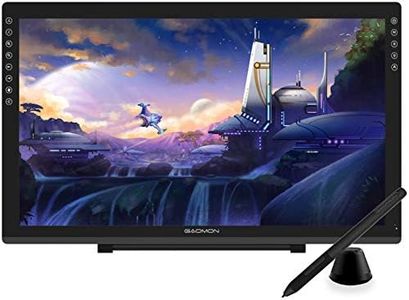
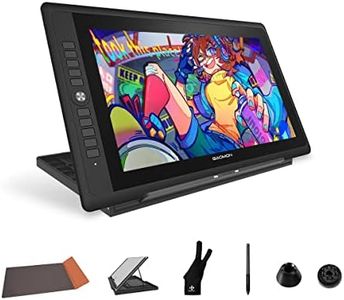
GAOMON PD2200 Drawing Tablet with Screen, Full-Laminated Digital Art Tablet with 8 Touch Buttons, Battery-Free Stylus, Tilt, 130% sRGB, 21.5 inch Graphics Tablet with Stand for Mac, Windows PC

Rating
9.4
Active Drawing Area
Pressure Sensitivity
Express Keys

Most important from
6667 reviews

Active Drawing Area
The expansive 21.5-inch screen offers ample space that suits artists craving a larger canvas without the hefty price tag of premium brands.
Pressure Sensitivity
Pressure sensitivity is impressively accurate out of the box, delivering natural and lag-free strokes when paired with a capable computer.
Express Keys
Touch shortcut buttons are placed awkwardly and can be overly sensitive, leading to accidental presses and occasional erratic behavior.
Connectivity
Connectivity relies solely on cables—no wireless option—which may limit portability but ensures stable and consistent performance.

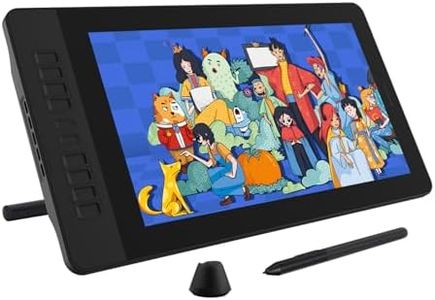
The GAOMON PD2200 is a sizable graphic tablet with a 21.5-inch active drawing area, making it great for artists who want plenty of space to work on detailed projects. It offers 8192 levels of pressure sensitivity and a battery-free stylus with tilt support, which helps in creating natural and precise strokes, an important feature for both beginners and professionals. The tablet features a full-laminated HD screen with an anti-glare glass surface, reducing parallax (the slight gap between pen tip and cursor) and providing clear, vibrant color thanks to 130% sRGB coverage. This means your drawings will look sharp and colors will be more accurate.

There are 8 customizable touch buttons on the device to speed up your workflow by assigning shortcuts. Connectivity is via HDMI and USB, and it’s compatible with both Windows and Mac operating systems, working smoothly with popular drawing software like Photoshop and Illustrator. However, it’s important to note that the PD2200 is not a standalone device—it must be connected to a computer to function, which could limit portability. It’s also on the heavier side at over 8 pounds, so it’s more suited for a dedicated workspace rather than carrying around.

The tablet includes a stand for better ergonomics, but some users might find the response time (25 ms) slightly slower compared to higher-end models, though this won't be noticeable for most digital art tasks. This tablet delivers solid drawing performance and screen quality at a reasonable price, making it a good pick for students, hobbyists, and professionals looking for a large, responsive drawing surface without breaking the bank.

Rating
9.4
Active Drawing Area
Pressure Sensitivity
Express Keys

Most important from
6667 reviews

Active Drawing Area
The expansive 21.5-inch screen offers ample space that suits artists craving a larger canvas without the hefty price tag of premium brands.
Pressure Sensitivity
Pressure sensitivity is impressively accurate out of the box, delivering natural and lag-free strokes when paired with a capable computer.
Express Keys
Touch shortcut buttons are placed awkwardly and can be overly sensitive, leading to accidental presses and occasional erratic behavior.
Connectivity
Connectivity relies solely on cables—no wireless option—which may limit portability but ensures stable and consistent performance.
#3

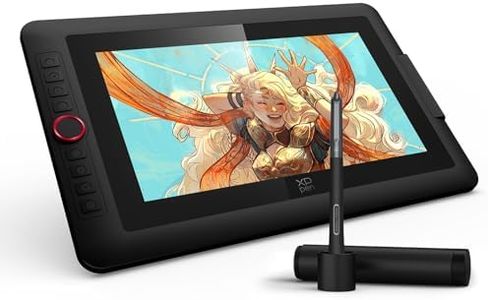
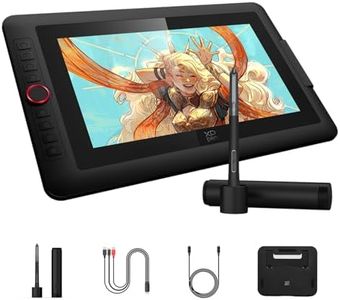
XPPen Upgraded Artist13.3 Pro V2 Drawing Tablet with Screen, 16384 Pen Pressure X3 Pro Stylus Pen Display, 99% sRGB Full-Laminated AG Screen Graphic Tablet with Stand, Red Dial, 8 Shortcut Keys 13.3"

Rating
9.4
Pressure Sensitivity
Active Drawing Area
Express Keys

Most important from
711 reviews

Pressure Sensitivity
The 16,384 levels of pen pressure sensitivity deliver incredibly precise and smooth lines, making detailed digital artwork feel natural and effortless.
Active Drawing Area
The size and active drawing area suit the vast majority of artists, balancing portability with enough space for detailed work.
Express Keys
Customizable shortcut keys combined with the red dial streamline the workflow, enhancing productivity and making the drawing process much faster.
Connectivity
Setting up the tablet can require some patience, especially if other drawing tablet drivers are installed, but once configured, it works flawlessly.
Stylus Type
Using the pen’s flip-to-erase feature adds convenience and mimics traditional drawing tools, enhancing overall usability.

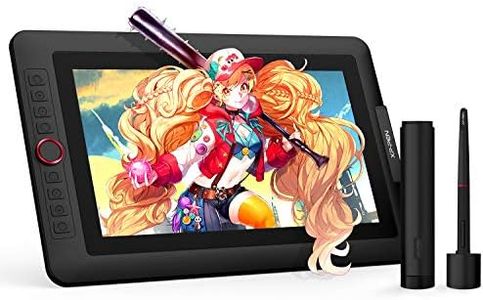
The XPPen Artist 13.3 Pro V2 is a solid choice for artists looking for a mid-sized drawing tablet with a built-in screen. It offers a good active drawing area of 13.3 inches, which is comfortable for detailed work without being too bulky. Its standout feature is the very high 16,384 levels of pen pressure sensitivity, which means it can detect even the slightest differences in how hard you press, resulting in precise and smooth lines. This makes it suitable for both beginners and more detailed artwork. The tablet’s screen is full HD with a laminated, anti-glare surface that reduces reflection and parallax, giving a feel closer to drawing on paper. Color accuracy is impressive, covering 125% of the sRGB range and other professional color gamuts, which is great if color detail matters to you.

For ease of use, it has a handy red dial and 8 customizable shortcut keys that help speed up tasks like zooming or changing brush size, which beginners often appreciate. The adjustable stand adds comfort by allowing you to position the tablet at a good angle, reducing wrist and neck strain during long sessions. It connects to computers via USB-C and HDMI (note that the HDMI adapter is not included) and is not a standalone device—you need to connect it to a computer or laptop. Compatibility is broad, supporting Windows, macOS, Linux, Chrome OS, and some Android devices. The setup is designed to be user-friendly with clear instructions and driver support, though beginners might take some time to get fully comfortable. If you want a high-quality display tablet that balances professional features with beginner-friendly controls and don’t mind connecting it to a PC, the XPPen Artist 13.3 Pro V2 is a strong option.

Rating
9.4
Pressure Sensitivity
Active Drawing Area
Express Keys

Most important from
711 reviews

Pressure Sensitivity
The 16,384 levels of pen pressure sensitivity deliver incredibly precise and smooth lines, making detailed digital artwork feel natural and effortless.
Active Drawing Area
The size and active drawing area suit the vast majority of artists, balancing portability with enough space for detailed work.
Express Keys
Customizable shortcut keys combined with the red dial streamline the workflow, enhancing productivity and making the drawing process much faster.
Connectivity
Setting up the tablet can require some patience, especially if other drawing tablet drivers are installed, but once configured, it works flawlessly.
Stylus Type
Using the pen’s flip-to-erase feature adds convenience and mimics traditional drawing tools, enhancing overall usability.

Buying Guide for the Best Graphic Tablets For Drawing

Choosing the right graphic tablet for drawing can significantly enhance your digital art experience. The right tablet will depend on your specific needs, such as the type of art you create, your skill level, and how you plan to use the tablet. Here are some key specifications to consider when selecting a graphic tablet for drawing, along with explanations to help you make an informed decision.
Active Drawing AreaThe active drawing area is the part of the tablet where you can draw. This spec is important because it determines how much space you have to work with. Larger areas are better for detailed work and broad strokes, while smaller areas are more portable and can be sufficient for less detailed work. If you create large, detailed pieces, opt for a larger active area. For more casual or on-the-go drawing, a smaller area might be more convenient.
Pressure SensitivityPressure sensitivity refers to how many levels of pressure the tablet can detect from the stylus. This is crucial for creating varied line thickness and opacity, which adds depth and detail to your drawings. Tablets typically range from 1,024 to over 8,192 levels of pressure sensitivity. Beginners might find lower levels sufficient, but more experienced artists will benefit from higher sensitivity for greater control and precision.
Resolution (LPI)Resolution, measured in lines per inch (LPI), indicates how many lines the tablet can detect per inch of the active area. Higher resolution means more detail and accuracy in your drawings. Tablets with higher LPI are better for detailed and high-resolution artwork. If you work on intricate designs or professional projects, aim for a higher LPI. For simpler or less detailed work, a lower LPI might be adequate.
Stylus TypeThe stylus is the pen-like tool you use to draw on the tablet. There are different types of styluses, including battery-free, rechargeable, and those with erasers. Battery-free styluses are lighter and more convenient, while rechargeable ones might offer additional features. Some styluses come with built-in erasers, which can be handy for quick corrections. Consider your drawing habits and preferences when choosing a stylus type.
Express KeysExpress keys are customizable buttons on the tablet that can be programmed for shortcuts, such as undo, redo, or switching tools. These keys can significantly speed up your workflow and make drawing more efficient. The number and placement of express keys vary between models. If you frequently use shortcuts and want to streamline your process, look for a tablet with more express keys. If you prefer a simpler setup, fewer keys might suffice.
ConnectivityConnectivity options determine how the tablet connects to your computer or device. Common options include USB, Bluetooth, and wireless connections. USB connections are reliable and straightforward, while Bluetooth and wireless options offer more flexibility and reduce cable clutter. Consider where and how you will use the tablet. If you need to move around or prefer a cleaner workspace, wireless or Bluetooth might be better. For a stable and consistent connection, USB is a solid choice.
CompatibilityCompatibility refers to whether the tablet works with your computer's operating system and drawing software. Most tablets are compatible with both Windows and macOS, but it's essential to check. Additionally, ensure the tablet supports the drawing software you use, such as Adobe Photoshop, Illustrator, or Corel Painter. Verify compatibility to avoid any issues and ensure a smooth drawing experience.

FAQ

Most Popular Categories Right Now