We Use CookiesWe use cookies to enhance the security, performance, functionality and for analytical and promotional activities. By continuing to browse this site you are agreeing to our privacy policy

10 Best USB-C Dual Display Docking Stations 2026 in the United States
How do we rank products for you?

Our technology thoroughly searches through the online shopping world, reviewing hundreds of sites. We then process and analyze this information, updating in real-time to bring you the latest top-rated products. This way, you always get the best and most current options available.

headphones-stars

Our Top Picks

#1

Winner

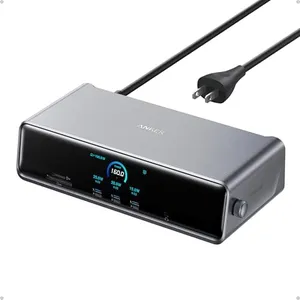
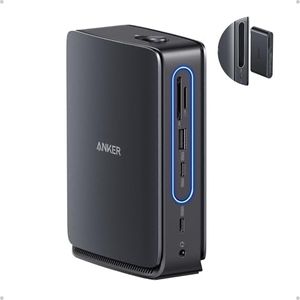
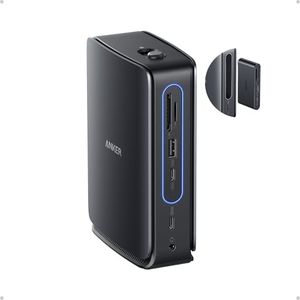
Anker Prime Docking Station (DL7400), 14-Port Triple Display with DisplayLink, 140W Max, Smart Display, Triple 4K 60Hz, Cooling Fan, for macOS and Windows (The Latest DisplayLink Driver Required)

Rating
10.0
Chosen by1,482
Power Delivery
Build Quality and Design
Ease of Use and Setup

Most important from
306 reviews

Power Delivery
The dock powers multiple devices simultaneously, charging a MacBook, iPhone, and Surface Pro 11 with extra capacity for a fourth device.
Build Quality and Design
Its stylish design enhances desk aesthetics and offers customizable clock screensavers with an easy way to manually turn off the display.
Ease of Use and Setup
Setup requires installing the DisplayLink driver to enable full video output functionality, which is essential for triple monitor use.
Port Selection
Front USB-C ports simplify charging and data transfer, making it easy to connect devices without rearranging cables.
Compatibility
It works seamlessly across different platforms, including Mac Mini, MacBook, Surface Pro, and gaming desktops without noticeable input lag.

The Anker Prime Docking Station (DL7400) is a versatile hub designed for users needing to connect multiple displays and peripherals through USB-C. It supports up to three external monitors, including one with ultra-high 8K resolution, making it great for multitasking and detailed work on both Mac and Windows laptops. The docking station includes 14 ports, such as USB-C (with high-speed data and charging up to 140W), HDMI, DisplayPort, Ethernet, audio jack, and card readers, covering nearly all types of connections you might need at a desk. Its built-in cooling fan and smart display help monitor performance and keep the unit stable during heavy use.

Setup requires installing the latest DisplayLink driver, which might be a small hurdle for some users. While the front USB-C ports offer charging, they don’t support video output, so you’ll need to plan your monitor connections accordingly. The device is solidly built and compact enough to fit comfortably on a desk. However, despite its power, the dock is a bit heavier than simpler models and may be more than some users require if they don’t need triple display support.

This docking station is well suited for professionals or power users who want a single solution for multiple monitors and a wide range of peripherals, offering strong performance and flexibility with only minor setup considerations.

Rating
10.0
Chosen by1,482
Power Delivery
Build Quality and Design
Ease of Use and Setup

Most important from
306 reviews

Power Delivery
The dock powers multiple devices simultaneously, charging a MacBook, iPhone, and Surface Pro 11 with extra capacity for a fourth device.
Build Quality and Design
Its stylish design enhances desk aesthetics and offers customizable clock screensavers with an easy way to manually turn off the display.
Ease of Use and Setup
Setup requires installing the DisplayLink driver to enable full video output functionality, which is essential for triple monitor use.
Port Selection
Front USB-C ports simplify charging and data transfer, making it easy to connect devices without rearranging cables.
Compatibility
It works seamlessly across different platforms, including Mac Mini, MacBook, Surface Pro, and gaming desktops without noticeable input lag.
#2

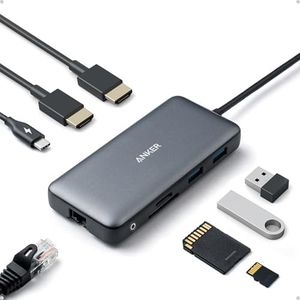
Anker Laptop Docking Station Dual Monitor, 8-in-1 USB C Hub, 4K Dual Monitor with 2 HDMI, 1 Gbps Ethernet Hub, 85W Power Delivery, SD Card Reader, for XPS and More (Charger not Included)

Rating
9.1
Compatibility
Number of Display Outputs
Power Delivery

Most important from
6263 reviews

Compatibility
Works perfectly for connecting monitors to a new work laptop, even in a pinch.
Number of Display Outputs
Connecting dual monitors with this hub boosts productivity significantly.
Power Delivery
Does not come with a USB cable to connect to a power source, and it does not charge the laptop directly.
Port Selection
The range of ports is excellent, handling everything from HDMI to USB-A and USB-C.
Build Quality and Design
It’s compact and lightweight, making it perfect for travel.
Ease of Use and Setup
Setup is quick and seamless, ensuring reliability no matter where it's used.

The Anker Laptop Docking Station is a versatile 8-in-1 USB-C hub designed for users needing multiple display outputs and robust connectivity options. With compatibility spanning MacBooks, Windows laptops, and Chromebooks, this docking station suits a wide range of users. It offers dual HDMI ports for connecting up to two 4K displays at 30Hz, ideal for extended screen real estate for productivity tasks. However, macOS users will see identical content on both external monitors, which may limit its utility for some.

The docking station provides 100W Power Delivery, ensuring your laptop remains charged, though you'll need to purchase a separate PD wall charger and USB-C cable to utilize this feature fully. The build quality is solid, with a sleek gray design that complements modern laptops. Ease of use is enhanced by the plug-and-play setup, making it accessible even for those not tech-savvy.

It lacks Linux compatibility, which may be a deal-breaker for some users. Additionally, while it has a comprehensive port selection including Ethernet and SD card readers, the two USB-A ports might not be sufficient for users with multiple peripheral devices. The Anker Laptop Docking Station is a powerful tool for multi-display setups and extensive connectivity needs, though its limitations with macOS and Linux compatibility should be considered.

Rating
9.1
Compatibility
Number of Display Outputs
Power Delivery

Most important from
6263 reviews

Compatibility
Works perfectly for connecting monitors to a new work laptop, even in a pinch.
Number of Display Outputs
Connecting dual monitors with this hub boosts productivity significantly.
Power Delivery
Does not come with a USB cable to connect to a power source, and it does not charge the laptop directly.
Port Selection
The range of ports is excellent, handling everything from HDMI to USB-A and USB-C.
Build Quality and Design
It’s compact and lightweight, making it perfect for travel.
Ease of Use and Setup
Setup is quick and seamless, ensuring reliability no matter where it's used.
#3

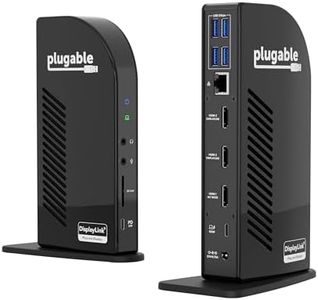
Plugable USB C Laptop Docking Station, Dual Monitor 4K 60Hz for Apple Mac M1/M2/M3/M4/M5, 2X HDMI or DisplayPort for MacBook, 100W Charging DisplayLink Dock, Driver Install Required (UD-6950PDH)

Rating
8.2
Compatibility
Number of Display Outputs
Display Resolution and Refresh Rate

Most important from
300 reviews

Compatibility
Offers broad compatibility across macOS, Windows, and ChromeOS, making it a versatile choice for hybrid setups.
Number of Display Outputs
Enables seamless connection of dual 4K external monitors plus the laptop display, greatly expanding workspace for MacBook users.
Display Resolution and Refresh Rate
Delivers consistent high-resolution output on both monitors without compromising video quality or settings.
Power Delivery
Supports pass-through charging while maintaining stable dual-monitor performance for extended work sessions.
Port Selection
Works flawlessly with multiple USB devices, network, and audio peripherals plugged in simultaneously.
Build Quality and Design
Sturdy build and professional design fit well in office environments, complementing modern laptops.
Ease of Use and Setup
Clear instructions and straightforward DisplayLink software installation make setup simple and effective.

The Plugable USB C Laptop Docking Station is designed for users who want to connect two 4K monitors to their MacBook or other USB-C/Thunderbolt laptops, including the newer M1 to M5 Apple models. Its standout feature is supporting dual 4K displays at 60Hz through HDMI or DisplayPort without needing extra adapters, which is great for multitasking or more productive work setups. The dock offers 100W power delivery, enough to charge most laptops while in use, and includes a variety of useful ports like multiple USB 3.0, SD and microSD card readers, Ethernet, and a 3.5mm headset jack. The aluminum build with a sleek space gray finish feels sturdy and looks professional on a desk.

This dock requires you to install DisplayLink software to enable dual displays, especially on Macs, which might be a bit tricky for users who want a plug-and-play experience. Additionally, it doesn’t support HDCP, so playing protected content like some streaming videos on both screens may not work. Compatibility is quite broad, supporting macOS 11+, Windows 10+, and ChromeOS, making it versatile for traditional or hybrid office setups.

The port selection and power delivery suit most users who need a reliable all-in-one docking solution. It represents a solid choice if you specifically want dual 4K output on a Mac or Windows laptop, but be prepared for the driver installation step and some limitations with protected video content.

Rating
8.2
Compatibility
Number of Display Outputs
Display Resolution and Refresh Rate

Most important from
300 reviews

Compatibility
Offers broad compatibility across macOS, Windows, and ChromeOS, making it a versatile choice for hybrid setups.
Number of Display Outputs
Enables seamless connection of dual 4K external monitors plus the laptop display, greatly expanding workspace for MacBook users.
Display Resolution and Refresh Rate
Delivers consistent high-resolution output on both monitors without compromising video quality or settings.
Power Delivery
Supports pass-through charging while maintaining stable dual-monitor performance for extended work sessions.
Port Selection
Works flawlessly with multiple USB devices, network, and audio peripherals plugged in simultaneously.
Build Quality and Design
Sturdy build and professional design fit well in office environments, complementing modern laptops.
Ease of Use and Setup
Clear instructions and straightforward DisplayLink software installation make setup simple and effective.

Buying Guide for the Best USB-C Dual Display Docking Stations

When choosing a USB-C dual display docking station, it's important to consider your specific needs and how you plan to use the docking station. A docking station can greatly enhance your productivity by allowing you to connect multiple peripherals and displays to your laptop or computer through a single USB-C port. To make the best choice, you should understand the key specifications and how they align with your requirements.
CompatibilityCompatibility refers to whether the docking station will work with your specific laptop or computer. This is important because not all docking stations are compatible with all devices. To navigate this, check the specifications of your laptop or computer to ensure it supports USB-C and the specific features you need, such as power delivery or video output. If you have a MacBook, Windows laptop, or another device, make sure the docking station explicitly states compatibility with your operating system and model.
Number of Display OutputsThe number of display outputs indicates how many monitors you can connect to the docking station. This is crucial for multitasking and productivity. Typically, docking stations offer support for two displays, but some may support more. If you need to connect two monitors, ensure the docking station supports dual display output. For users who need more than two monitors, look for docking stations that offer additional display outputs.
Display Resolution and Refresh RateDisplay resolution and refresh rate determine the quality and smoothness of the visuals on your monitors. Higher resolutions like 4K provide sharper images, while higher refresh rates (e.g., 60Hz or 120Hz) offer smoother motion. If you use your monitors for detailed work like graphic design or video editing, opt for a docking station that supports higher resolutions and refresh rates. For general office work, a standard 1080p resolution at 60Hz may suffice.
Power DeliveryPower delivery refers to the docking station's ability to charge your laptop or device through the USB-C connection. This is important for reducing cable clutter and ensuring your device stays charged while connected. Power delivery is measured in watts (W). For most laptops, a docking station with 60W to 100W power delivery is sufficient. Check your device's power requirements and choose a docking station that meets or exceeds this value.
Port SelectionPort selection refers to the variety and number of ports available on the docking station. This is important for connecting various peripherals like keyboards, mice, external drives, and more. Common ports include USB-A, USB-C, HDMI, DisplayPort, Ethernet, and audio jacks. Consider the peripherals you need to connect and ensure the docking station has enough of the right types of ports. For example, if you need to connect multiple USB devices, look for a docking station with several USB-A and USB-C ports.
Build Quality and DesignBuild quality and design refer to the physical construction and aesthetic of the docking station. This is important for durability and how well the docking station fits into your workspace. Look for docking stations made from high-quality materials like aluminum or sturdy plastic. Consider the size and design to ensure it fits well on your desk and complements your other devices. A well-built docking station will last longer and provide a better user experience.
Ease of Use and SetupEase of use and setup refer to how simple it is to get the docking station up and running. This is important for minimizing downtime and frustration. Look for docking stations that offer plug-and-play functionality, meaning they work right out of the box without needing additional drivers or software. User-friendly designs with clear instructions can make the setup process smoother. If you're not tech-savvy, prioritize docking stations known for their ease of use.

FAQ

Most Popular Categories Right Now